Future Retro Fusion Commodore Amiga Website C64  •  AMIGA  •  ATARI ST  •  MSX

▶ RSS FEED
⌂ HOME
Friday, Friday, February 20, 2026
General, Projects, PiStorm

PISTORM EMU68 1.1 USB GUIDE

Posted by at 09:37:08

== Step 0 — Backup (strongly recommended) ==
Before you begin:
# Backup your boot SD (FAT partition) contents (Emu68 files).
# Backup your Amiga system drive (or at least your Poseidon and DEVS/LIBS changes).
# If testing USB storage: test with a blank USB stick you don’t care about.

== Step 1 — Update Emu68 to 1.1 alpha.1 ==
# Download the correct Emu68 1.1 archive for your hardware from the Emu68 releases page.
# Extract the archive on your PC.
# Copy/replace the Emu68 boot files onto the **FAT(16/32) boot partition** of the SD card.
# Reinsert SD and boot Emu68.

‘'’Notes:”’
* Emu68 1.1 changes some package names (make sure you pick the correct one for your PiStorm family).
* Emu68 1.1 may require a newer VideoCore.card (see the Emu68 release notes in the release page).

== Step 2 — Confirm Poseidon 4.5 is installed ==
The xHCI driver is a **Poseidon v4.5** hardware driver.
# Open Trident (Poseidon preferences).
# Confirm Poseidon version is **4.5** (About/Version info).
# If you’re not on 4.5, install/update Poseidon first before proceeding.

== Step 3 — Install gic400.library (required) ==
# Download the latest **gic400.library** release from:
# https://github.com/rondoval/emu68-gic400-library/releases
# Copy **gic400.library** to:
#* ‘'’LIBS:”’
# Reboot your Amiga/Emu68 environment.

== Step 4 — Install xhci.device ==
# Download the latest **emu68-xhci-driver** release from:
# https://github.com/rondoval/emu68-xhci-driver/releases
# Extract the archive on your Amiga (or on PC and transfer the files over).
# Copy ‘'’xhci.device”’ to:
#* ‘'’DEVS:USBHardware/”’
# If the ‘'’DEVS:USBHardware”’ drawer does not exist, create it.

‘'’Why this location?”’
Poseidon hardware drivers are typically loaded from ‘'’DEVS:USBHardware”’ and referenced like:
DEVS:USBHardware/.device/

== Step 5 — Add/Enable the xHCI controller in Trident ==
# Open ‘'’Trident”’ (Poseidon prefs).
# Go to the section for ‘'’Hardware”’ / ‘'’Host Controllers”’ (wording varies).
# Choose ‘'’Add”’ (or similar).
# When prompted for driver/device:
#* Select ‘'’xhci.device”’
#* Set ‘'’Unit”’ to ‘'’0′'’ (typical default)
# Save changes.
# Use Trident’s ‘'’Restart Poseidon”’ / ‘'’Restart stack”’ option if available, otherwise reboot.

== Step 6 — Test safely ==
Start with low-risk devices first:
# Plug in a simple USB2 HID device (mouse/keyboard via dongle).
# Check Trident’s device tree: you should see a root hub and attached devices.
# Only after HID works, test storage with:
#* A spare USB stick you don’t care about
#* Read-only tests first (list files, verify checksums if possible)
# If you try USB3:
#* Plug a USB3 device directly into a blue USB3 port on the Pi 4B (no hub)
#* Expect limitations (USB3 hubs not supported yet)

== Known limitations (as of driver v2.0) ==
* The driver is experimental and can corrupt data.
* USB3 (SuperSpeed) support is limited:
** Works only for some devices directly connected to Pi 4B USB3 ports
** USB3 hubs are not supported
* CM4 and the Pi 4 OTG port are not supported (per repo README).

== Troubleshooting ==
=== xhci.device doesn’t appear in Trident ===
* Confirm you copied it to: ‘'’DEVS:USBHardware/xhci.device”’
* Confirm you are running Poseidon **4.5**
* Reboot after copying (don’t rely on hot-reload at first)

=== Trident/Poseidon can’t open the driver or crashes ===
* Confirm **gic400.library** exists in ‘'’LIBS:”’
* Confirm you are running **Emu68 1.1 alpha.1** (or 1.0.99)
* Confirm you are using **Raspberry Pi 4B** (VL805 xHCI controller)

=== Devices enumerate but storage is flaky ===
* This is expected for an experimental driver.
* Use different USB sticks, avoid hubs, try USB2 devices first.
* Avoid write tests on anything important.

== References ==
* Emu68 releases and release notes:
https://github.com/michalsc/Emu68/releases
* emu68-xhci-driver:
https://github.com/rondoval/emu68-xhci-driver
* emu68-xhci-driver releases:
https://github.com/rondoval/emu68-xhci-driver/releases
* gic400.library:
https://github.com/rondoval/emu68-gic400-library
* gic400.library releases:
https://github.com/rondoval/emu68-gic400-library/releases

425 views  •  Add a comment Permalink »
Monday, Monday, July 7, 2025
General, E-UAE, PiStorm

Mini E-UAE file and folder based Amiga Emulation on the Amiga 68k (PiStorm Powered)

Posted by at 08:04:13

E-UAE is just a VM, the AmigaOS can manage multiple VMs. They are part of modern computing.

Screenshot_20250707_080750.png

miniE-UAE offers a streamlined virtualization solution for AmigaOS, catering to both developers and enthusiasts. It enables efficient testing, development, and exploration of Amiga applications without the need for physical hardware.

🔧 Key Features
Compact Deployment: Approximately 10MB download, expanding to ~23MB upon extraction.

User-Friendly Interface: Launches with a screen size selector; canceling defaults to windowed mode on the Workbench.

Intuitive Controls:

Reset VM: Ctrl + Shift + R

Quit VM: Ctrl + Shift + Q

Mount Floppy (.adf):

Ctrl + Shift + F1 for df0

Ctrl + Shift + F2 for df1

Pre-Configured Environment: Boots into a DOS menu with three pre-installed AGA-compatible applications, optimized for systems utilizing PiStorm and RTG setups.

Custom WHDLoad Integration: Mount your own WHDLoad directories by modifying the mount-list in the .uaerc configuration file, allowing for flexible testing scenarios.

🖥️ System Requirements
Hardware:

PiStorm equipped with a Raspberry Pi 4B or Compute Module 4 for optimal performance and sound support.

Pi 3A or Zero 2W are compatible but may exhibit slower performance.

Display:

RTG (ReTargetable Graphics) setup is recommended.

Native screen modes are supported; however, AGA via HAM is possible but may not be practical.

📥 Installation Guide
Download: Obtain the package from the following link:

https://futureretrof … miniEUAE-AmigaVM.lha

Extract: Copy the archive to a new folder and extract its contents.

Launch: Double-click the Start icon to initiate the VM.

🤝 Support the Developers:

Your contributions help sustain and advance Amiga development:

JOTD’s Projects
https://jotd666.itch.io/

Skyzoo73’s Ghosts’n Goblins AGA Demo
https://skyzoo73.itc … blins-amiga-aga-demo

miniE-UAE serves as a practical solution for those seeking a reliable and efficient AmigaOS virtualization platform. Its lightweight design and straightforward setup process make it an ideal choice for development, testing, and exploration of Amiga applications.
1315 views  •  Add a comment Permalink »
Saturday, Saturday, July 5, 2025
General, PiStorm

Top 10 Amiga Audio Tools

Posted by at 08:49:35
Screenshot_20250705_084911.png

🎧 Top 10 Amiga Audio Tools

🎛️ Tool 🔍 Description 🔗 Link
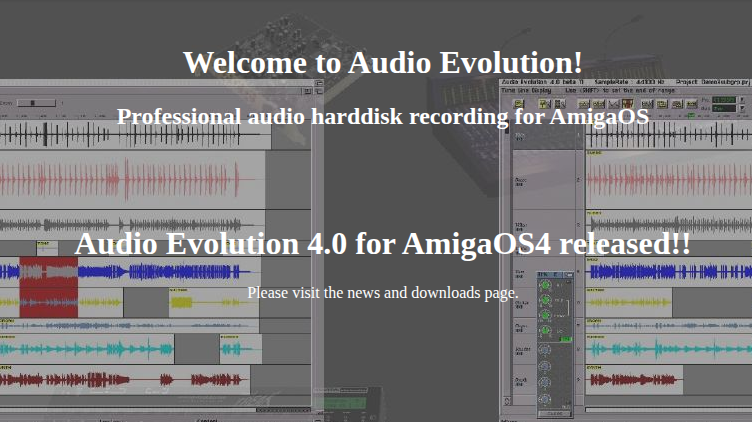
Audio Evolution Multitrack DAW with AHI support for recording, mixing, and effects. Best DAW for OS3.x. Archive Link
OctaMED SoundStudio Tracker/DAW hybrid with sample and MIDI support, up to 16 channels via AHI. Aminet
Bars & Pipes Professional Advanced modular MIDI sequencer, ideal for external synths and MIDI routing. Aminet
ProTracker Classic 4-channel MOD tracker. Great for chip tunes and demo music. Aminet
DigiBooster Pro 16-bit tracker with AHI support. Allows stereo samples and modern effects. Official Site
Delitracker MOD and exotic tracker player with support for many music formats. Aminet
AHI Audio System Universal audio driver layer for AmigaOS. Required by many modern tools. Aminet
MusicMaker V8 Sample-based tracker and sequencer with digital editing and effects. Aminet
Camouflage Modular audio environment with plug-in DSP routing and sequencing. Aminet (demo)
Horny MIDI Sequencer Simple, lightweight MIDI-only sequencer for OS3.x and OS4. Aminet

1154 views  •  Add a comment Permalink »
Saturday, Saturday, June 21, 2025
Projects, PiStorm

Making a GiveAway PiStorm

Posted by at 19:27:30
Screenshot_20250621_193119.png
951 views  •  Add a comment Permalink »
Admin
Menu
Categories
Archives
Last 10 entries
Search
Subscribe